
Try it first
On Home, Try the sample builds a complete exam with its sheets already scanned. In a minute you see grading, grades and analysis without printing anything.
Create the course
In Courses → New course, paste the class list from a spreadsheet or import it (Excel or CSV). You do it once per term, and every evaluation of the course uses it.
Have a question bank
In Question banks, write a new bank or bring in the one you have with Import… (.txt, .xlsx or .csv). How to write one is in Writing a question bank.
Prepare the exam
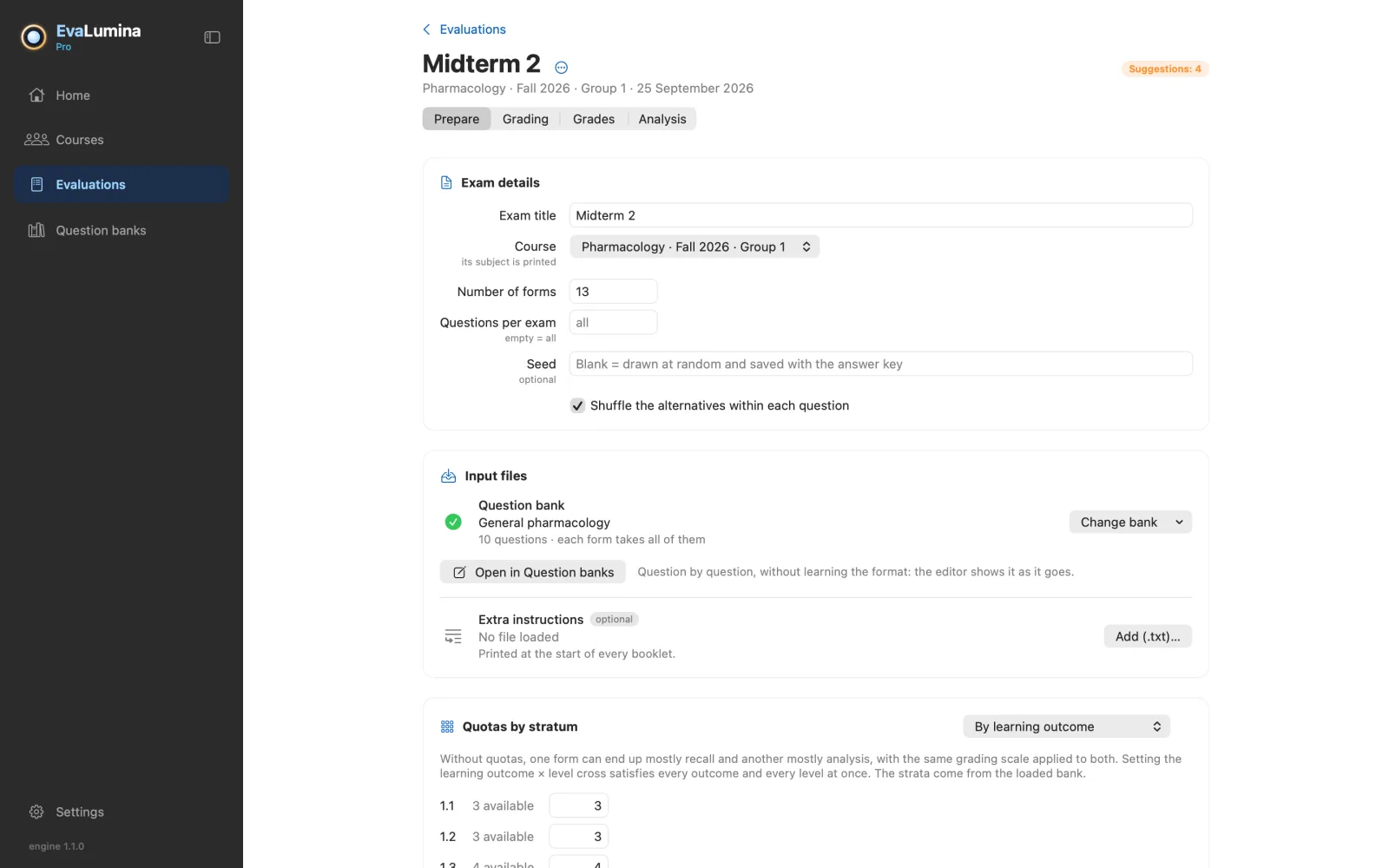
In Evaluations → New evaluation, the Prepare stage asks for the title, the course, the number of forms and how many questions each exam takes (empty means all). Choose the bank and press Generate booklets and answer key…: you get one PDF booklet per form, the answer sheet and the encrypted answer key. The evaluation remembers every file, so it reopens where you left it.
Print and give the exam
Each student gets a booklet and an answer sheet, and marks on the sheet their form number and their identifier. Answers are marked by filling in the bubble, in pencil or pen. A bubble that is only circled reads as blank.
Scan the sheets
With any scanner or multifunction printer, in black and white or colour: one multi-page PDF, or JPG or PNG images in a folder.
Grade
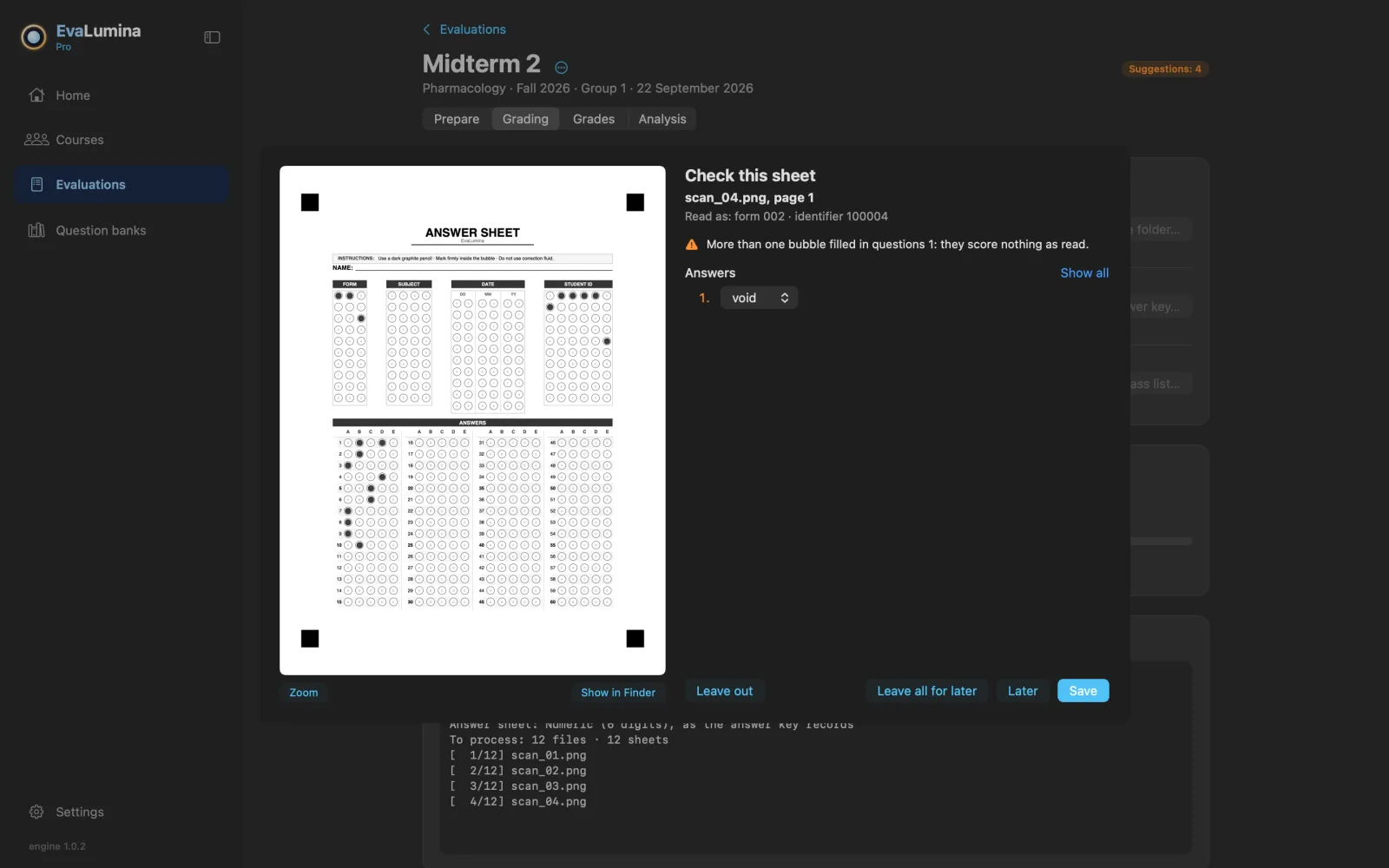
In Grading, choose the folder or PDF with the sheets and press Start automatic grading. When a sheet can't be read with confidence, grading stops and shows you the page: type what the paper says, leave the sheet out, or keep it for when the batch is done.
Grades
In Grades, set the scale (pass threshold, minimum, passing and maximum grade, decimals, penalty for wrong answers), sort, and export with Export grade sheet… If a question was badly worded, Correct a question… annuls it, credits it to everyone or changes its key: you see which grades change before applying, and you can undo it.
Analysis Pro
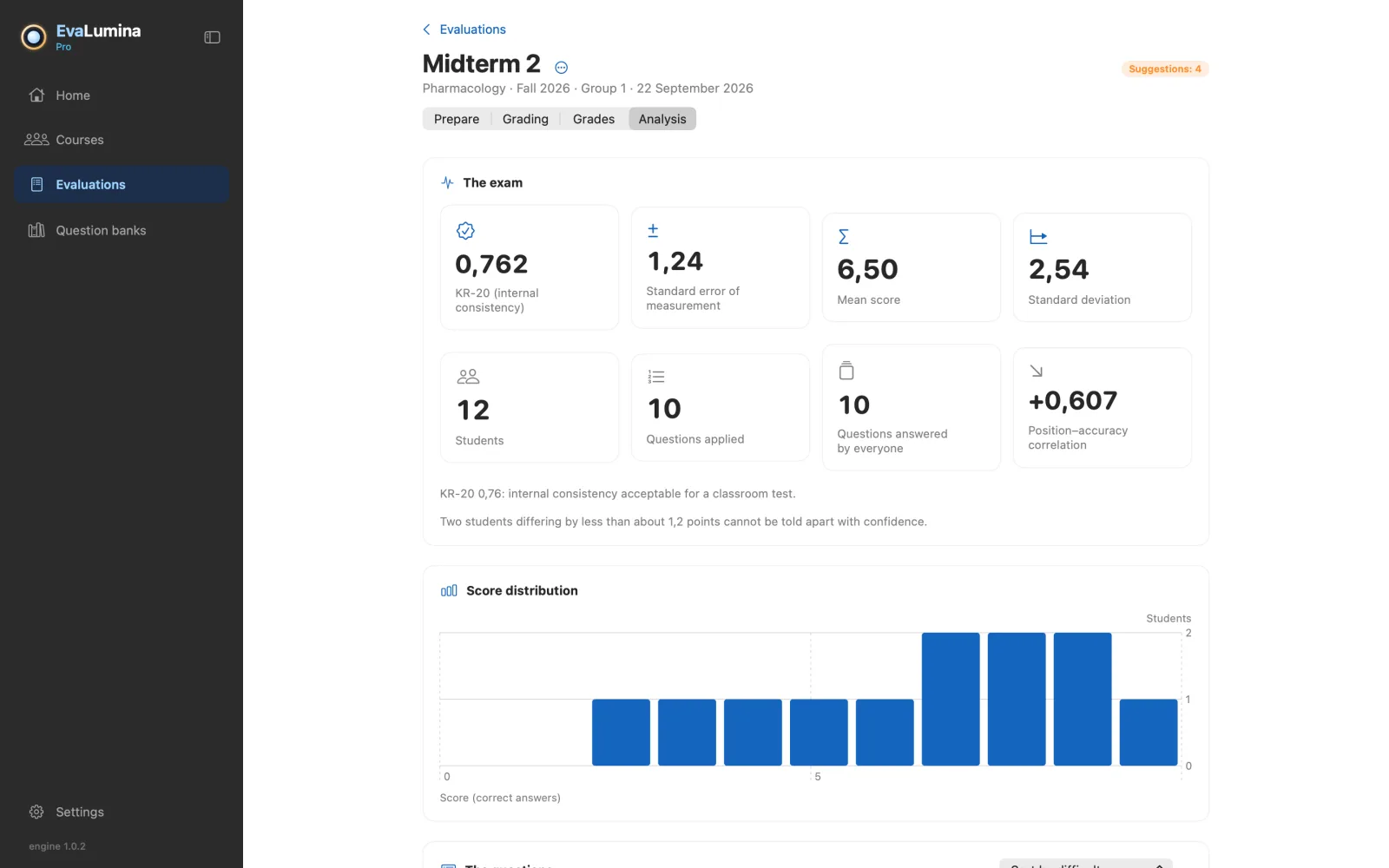
Analysis shows the exam's reliability (KR-20 and standard error of measurement), each question's difficulty and discrimination, and how each distractor was chosen, with a note on what each value means. Calibrate the bank writes the measured difficulty and discrimination into the bank, so the next exam starts from data.
What is left to do
Home lists what is still pending in each evaluation: sheets with no student, absent students, questions worth checking. Each item opens the stage where it is resolved.